![lenderlogo.png]](https://knowledgebase.lenderhomepage.com/hs-fs/hubfs/lenderlogo.png?height=40&name=lenderlogo.png)
When sharing your website on Facebook, LinkedIn, or other social media platforms, the preview image may display an outdated photo, an incorrect image, or no image at all. This typically occurs because social networks cache website metadata and continue displaying an older version of the page. This guide explains how to refresh social media previews and ensure the correct image appears when your website is shared.
Symptoms You may experience one or more of the following:
Symptoms You may experience one or more of the following:
- Facebook displays an old image.
- LinkedIn shows the wrong thumbnail.
- A recently updated photo does not appear when sharing a link.
- No preview image appears at all.
- Social media posts continue showing outdated content after website changes.
Step 1: Refresh the Image in LHP If you've recently changed the featured image on your page, make sure the changes have been published.
Update the Featured Image
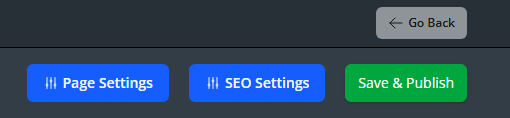
- Open the page in your website editor and click SEO Settings in the upper right corner of the page editor |
- Update or replace the Featured Image.
- Save the page.
- Republish the page.
Important: Social media platforms may continue displaying an older version until their cache has been refreshed.